This post covers how to install the SCO SQL-Retriever ODBC Drivers on Windows 10. SQL-Retriever is a ODBC driver made by a company called VisionWare in the 90’s.
Update (2026): a native 64-bit driver for Informix. If your SQL-Retriever server fronts an Informix database, you no longer need the 32-bit driver or the manual registry steps below. I’ve built a free, native 64-bit ODBC driver that installs with one command and works directly from 64-bit Excel, Power BI and Power Query — no 32-bit workarounds. Jump to the 64-bit driver →
There is a useful website with lots of interesting information about SQL-Retriever. Unfortunately, according to the site the most recent version of Windows it is compatible with is Windows 2000.
I wanted to get the drivers working on Windows 10 because I work with a number of businesses that have old releases of Informix running on SCO OpenServer 5. An ODBC link to these databases would enable:
- Queries from Excel and other Office Applications
- Microsoft Power Platform
- Power Automate
- Power Apps
- Power BI
I setup a Windows 2000 VM and installed Office 2003 to test the software, and it works very well. Next, I needed to work out if it could work under Windows 10.
Good news! The SCO Vision SQL-Retriever ODBC drivers work perfectly in Windows 10, and it is quite easy to setup. The only downside is that you can only use 32-Bit software to work with it. My setup is as follows:
- Windows 10 64-Bit (Build 1909)
- Office 365 (32-Bit)
- Microsoft Power BI Desktop (32-Bit)
- SCO Vision ODBC version 4.18 (32-Bit)
I also tried the driver with PHP7 and Classic ASP running on Windows Server 2019 and it worked perfectly, so that opens up many possibilities.
Setup SQL-Retriever on Windows 10
The original installer does not work on Windows 10. So, you need to install it manually. I did my installation into ” C:\SCO\SQL-Retreiver”.
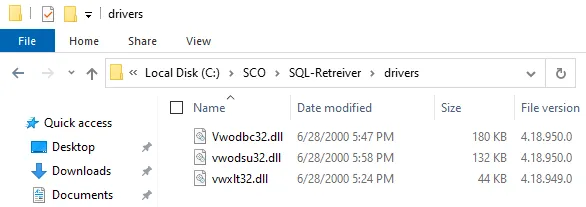
First of all you need these three dll files:
- vwodbc32.dll (Version 4.18.950.0)
- vwodsu32.dll (Version 4.18.950.0)
- vwxlt32.dll (Version 4.18.949.0)
I put these in folder C:\SCO\SQL-Retreiver\drivers:
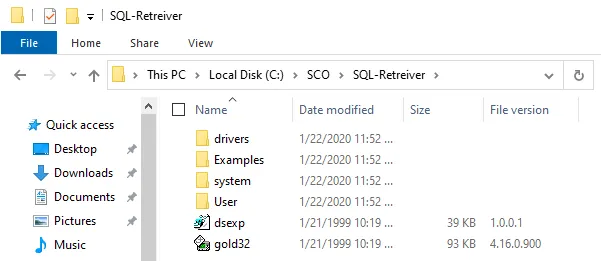
Next I took the original installation files (normally in C:\Program Files\Vision) and copied them to C:\SCO\SQL-Retreiver
Next you need to setup the registry, you can import the settings I have created from paste bin here (I have removed the product keys, but it will still work in evaluation mode) or download the .reg file here:

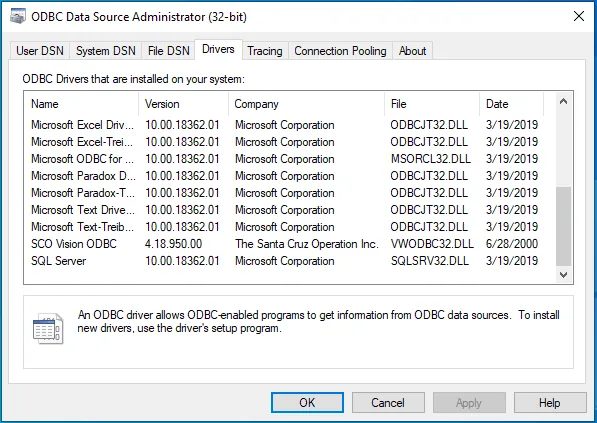
After you have imported the registry settings it should all just work, here you can see it in the 32-Bit ODBC Data Source Administrator Drivers list:
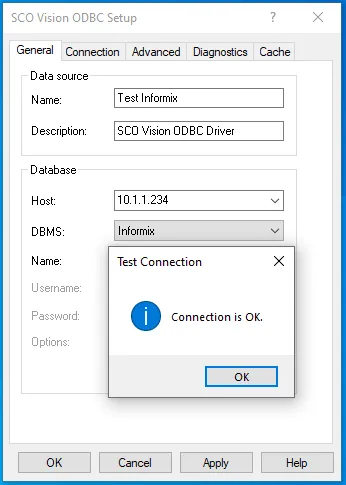
Setup your data source:
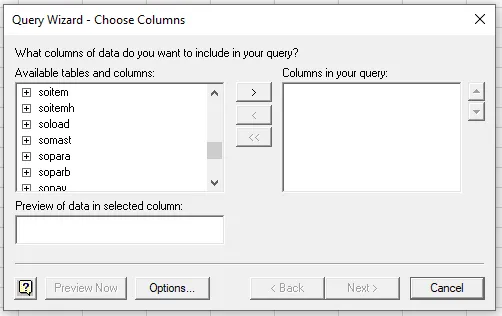
I tested using the Excel Query Wizard and it worked fine:
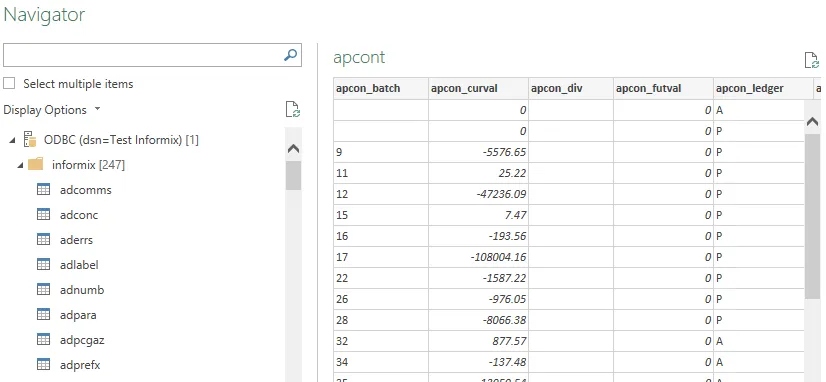
And also using Power Query from Excel:
On top of all of this I built a Web API which enabled me to build a custom connector from Microsoft Power Apps. It works really well and I am able to both query from and write to the Informix database in a completely new environment.
So a big thank you to whoever the author of sql-retriever.co.uk is, without that information I would not have been able to create this solution.
Just for reference, the system hosting the Informix database has the following setup:
- SCO OpenServer 5.0.6
- Informix DB-Access Version 7.23.UC13
- SCO SQL-Retriever Lite 4.18
It goes without saying that if you are planning to build a similar solution then the drivers are completely unsupported! This solution should also work if you have a compatible database and SQL-Retriever server hosted on IBM AIX, Unixware, IBM AIX or SPARC Solaris, as all of the changes are on the client side.
If you need help with your Legacy platform or SCO OpenServer System, please get in touch and let’s see what we can do.
A simpler option for Informix: a native 64-bit ODBC driver
Everything above gets the original 32-bit SCO Vision driver running on Windows 10 – which is the right approach when your SQL-Retriever server talks to a non-Informix database, or when you want the original vendor driver.
But most of the systems I work with are Informix. For those, I got tired of the 32-bit limitation, so I reverse-engineered the SQL-Retriever wire protocol and wrote a brand-new, native 64-bit ODBC driver from scratch. It installs in seconds and appears directly in ODBC Data Sources (64-bit), so 64-bit Excel, Power BI, Power Query and Power Platform connect to your Informix data with no 32-bit juggling.
What it gives you:
- A true 64-bit ODBC driver — works with 64-bit Office / Power BI out of the box.
- One-command install (a PowerShell script registers it system-wide). No manual registry editing, no copying
.dllfiles by hand, no evaluation keys. - A simple setup dialog for your host, port, database, user and password.
- Verified against a live Informix SE 7.23 database — row counts and
SUM()/COUNT()totals match the server exactly.
Honest limitations – please read:
- Informix only. It implements the Informix SE dialect that I could prove against a real server. It does not replicate the original driver’s support for other database back-ends.
- Read-only (
SELECT/ reporting). NoINSERT/UPDATE/DELETE. - It’s an independent, clean-room driver that speaks the SQL-Retriever protocol. It is not produced by or affiliated with SCO / Xinuos; “SCO Vision SQL-Retriever” is their name, used here only to describe compatibility.
- Unsupported, use at your own risk — same spirit as the rest of this post.
Install:
- Download SQL-Retriever-Informix-ODBC-x64.zip and unzip it.
- Right-click PowerShell ? Run as administrator, then run:
pwsh -ExecutionPolicy Bypass -File install.ps1 -WithSampleDSN - Open ODBC Data Sources (64-bit), edit the sample DSN with your server’s hostname, port, database, user and password – and you’re connected.
Where to find SQL-Retriever
The SQL-Retriever I used was shipped with the SCO OpenServer Installation CDs. It is part of the SCO Vision package. However, there are a number of different versions which have different capabilities. See this page for more information.
Finding the correct version can be difficult, so I have uploaded all of the versions that I have:
- SCO Vision 97 (SQL Retriever version 4.16)
- SCO Vision 2k Version 2.0 (SQL Retriever version 4.17)
- SCO Vision 2k Version 2.1 (SQL Retriever version 4.18)
The ISO files include the whole Vision package which includes both the server side and client side installers for SQL Retriever.