When you create a new virtual machine with a fresh install of a version of SCO OpenServer prior to version 5.0.6 you may find that it reports that the license is expired:
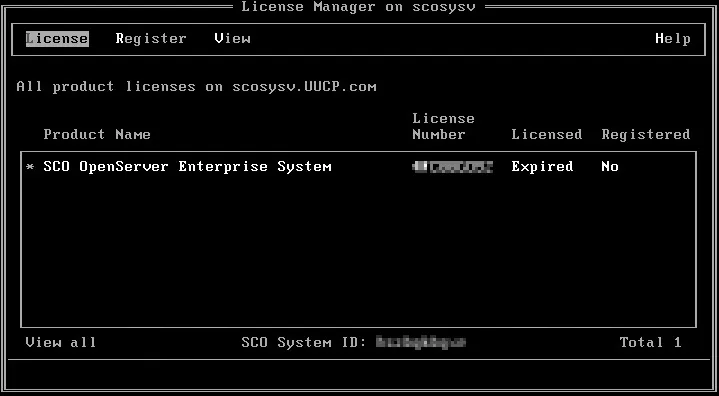
The reason this happens is because earlier releases are not fully year 2000 compliant and if the date the system was installed is after 31st December 1999 then the installation date is incorrect and the license is already expired when you first boot the system. The fix is quite easy:
- Shutdown the VM.
- Go into the Virtual BIOS.
- Set the system date to a date before the year 2000:
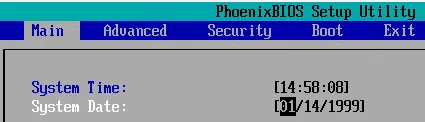
Set the year to 1999
-
Boot the system and go into single user mode.
-
Go into scoadmin and then license manager.
-
Remove the license that you have already entered.
-
License the SCO OpenServer Enterprise System and any other licenses you want to apply.
-
You should now see the licenses properly licensed:

-
Exit Scoadmin and quit single user mode
-
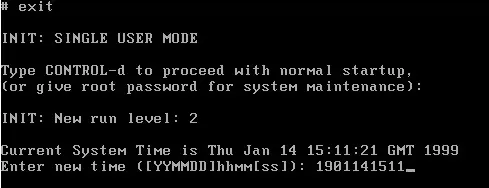
When the system is booting you will get a prompt to set the date and time. Enter the current date and time:
-
Finally, reboot.
You should find that all of the licenses are now properly in place.