If you connect to SCO OpenServer 5 using PuTTY, a handful of settings make the difference between a frustrating experience and a comfortable one.
The basics haven’t changed since the platform was mainstream, but there’s now a second set of settings worth knowing about, the ones that give you full 256-colour support and proper syntax highlighting in tools like nano.
Essential Settings
SCO OpenServer 5 has some quirks that trip up PuTTY’s defaults. Change these before you connect and most compatibility problems disappear.
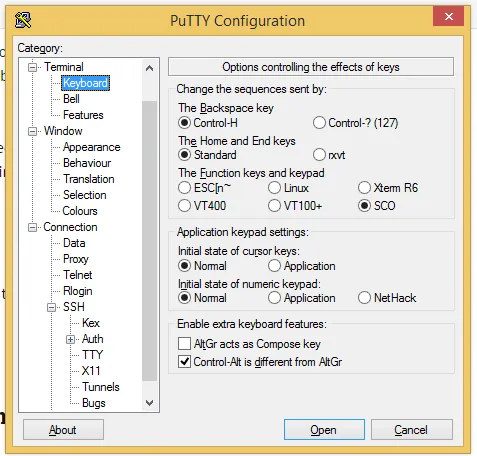
Keyboard settings
Set Backspace key to Control-H. SCO expects the old-style backspace and PuTTY’s default sends the wrong code, which makes editing at the command line awkward.
Set The Function keys and keypad to SCO. This maps the function keys correctly for SCO’s terminal environment.
Terminal Type
Set Terminal-type string to xterm. This is what SCO expects and it gives you a clean, compatible display.
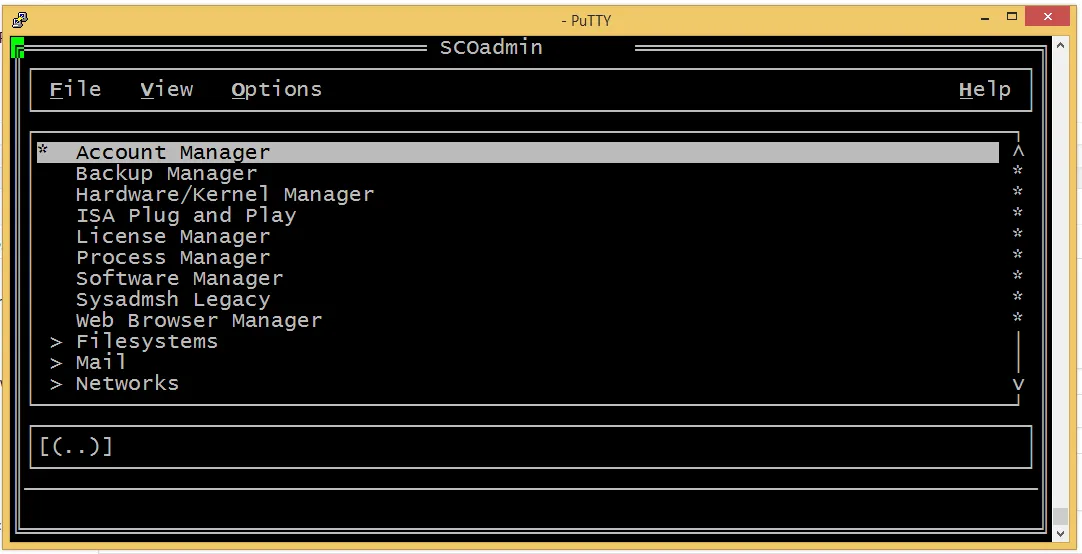
Save the session after making these changes. PuTTY only sends the terminal-type string at connection time, so changes don’t take effect in an already-open session.
256-Colour Support
The settings above give you a working terminal. With one more step you can have a good terminal with full 256-colour support, syntax highlighting in editors, and proper colour output from directory listings and other tools, just like you’d get on a modern Linux box.
SCO OpenServer 5’s stock xterm terminfo entry has no colour capabilities at all. It predates the 8/16/256-colour conventions that everything else takes for granted, which is why the terminal looks flat, editors show no highlighting, and why ls output is a wall of monochrome text.
Step 1 – Install the terminfo entry on the SCO box
My nano repository on GitHub includes a 256-colour xterm-256color terminfo source file, derived from modern ncurses and adjusted for SCO’s 16-bit terminfo number storage. Install it once on the SCO box:
tic extras/xterm-256color-sco.src
Step 2 – Update PuTTY’s settings
With the terminfo entry in place on the server, tell PuTTY to use it:
- Connection – Data – set Terminal-type string to xterm-256color. SCO will see the correct
$TERMat login automatically, so you won’t need to export it manually every session. - Window – Colours – tick Allow terminal to specify ANSI colours and Allow terminal to use xterm 256-colour mode. Both need to be on, or PuTTY will silently ignore 256-colour escape sequences.
Step 3 – Verify
tput colors
If it returns 256, everything is working.
What this gives you
Once the terminal is set up correctly, a surprising amount comes to life. A few examples:
Syntax highlighting in nano. Install GNU nano 2.9.8 for SCO and enable the bundled syntax files — C, Python, shell scripts, and 40+ others are highlighted automatically.
Colour directory listings. Install GNU coreutils 8.32 for SCO and add a couple of aliases to your .bashrc:
eval "$(gdircolors)"
alias ls='gls --color=auto'
alias ll='gls -lh --color=auto'
That gives you colour-coded ls output — directories, executables, symlinks and archives all distinct — exactly as you’d see on Linux. The binaries install with a g prefix so they sit alongside SCO’s stock tools without replacing them.
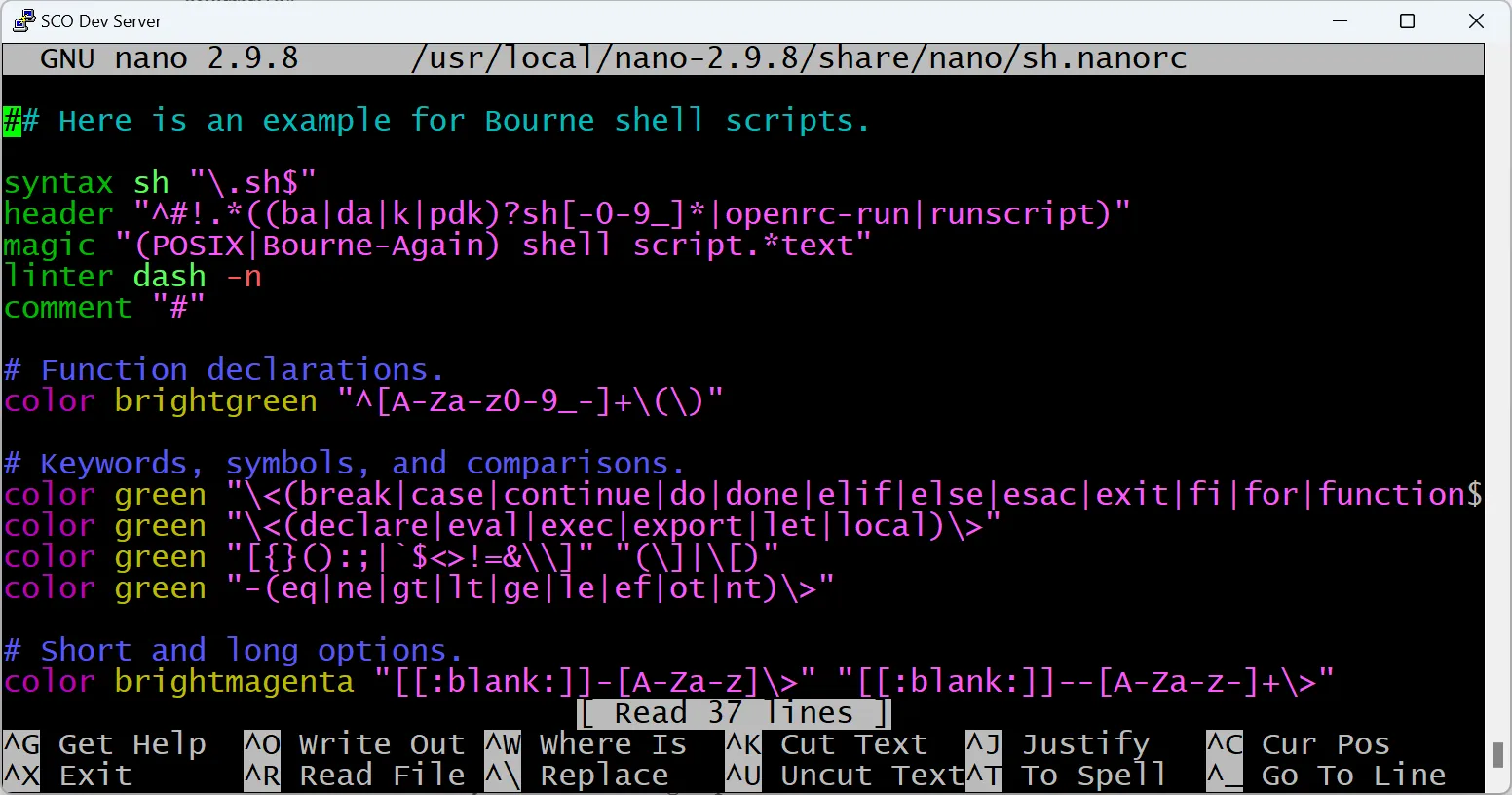
General colour output. Any tool that emits colour escape sequences will now render correctly. With a proper $TERM set and the xterm-256color terminfo in place, the terminal behaves the way modern tooling expects.
Taking It Further
Getting PuTTY set up correctly is a good first step – but if you’re regularly working on a SCO OpenServer 5 system, it’s worth knowing there’s now a full set of modern tools available for it too.
From curl with TLS to Python, rsync, bash, and the GNU userspace utilities, the SCO OpenServer precompiled binaries page has everything you need to turn an isolated legacy box into one that can hold its own in a modern infrastructure, all without touching the business application running on it.
If you’re looking for broader help, such as virtualising ageing hardware, keeping the system patched and secure, integrating with modern services, or planning a migration my SCO OpenServer support page covers what’s possible and how to get started.